Frequently Asked Questions (FAQ)
🌐 General Questions
Why should I use Filesender instead of other cloud services?
Filesender is optimized for security and speed within the research network. Your data remains on trusted infrastructure (GARR) and is not profiled for commercial purposes. Additionally, it supports massive transfers (up to 200GB) often not manageable by other services without expensive subscriptions.
Who can use the service?
All personnel (researchers, faculty, students, staff) belonging to IDEM federated institutions that have enabled the service. If you are an external user, you can receive files or be invited to upload files via a "Voucher" sent by an enabled user.
I can't upload files
Your browser cache may contain outdated files. If so, clear the cache, close and reopen your browser, and try uploading again. If the problem persists, contact filesender-service@garr.it.
📤 Transfer Management
Is the server secure? Are my data encrypted?
Transfers always take place over a secure channel (HTTPS). For file encryption, Filesender uses the AES-GCM algorithm with a key derived via PBKDF2. This ensures high security standards for stored data.
Can I limit downloads to authenticated users only?
Yes. When creating a transfer, you can select the option "User must log in to GARR Filesender to download files". In this case, the recipient will need to log in via IDEM to access the download, providing an additional layer of control.
How can I verify who downloaded the file?
You can monitor activity on your files via the "See transfer logs" feature available in the "My Transfers" section. Here you can verify if and when the intended recipient performed the download.
Can I send files to people outside the research community?
Yes, absolutely. You can send files to any valid email address. The IDEM federation membership requirement applies only to the sender (or whoever creates the guest voucher).
What happens if I forget to download a file before it expires?
Unfortunately, once expired, files are automatically and irreversibly deleted from the disk for privacy and space reasons. They cannot be recovered, nor can expired links be reactivated, regardless of who requests it: deletion is automatic and allows no exceptions or restorations, not even with the sender's authorization. Checking files by means of their tokens is also not possible, since the associated data has been deleted.
The only viable solution is for the sender to perform a new transfer of the same documentation, generating new valid download links; on that occasion it is advisable to set a longer validity period. It is therefore recommended to download files as soon as the notification is received.
Is there a speed limit?
No, upload and download speeds mainly depend on your local connection and network congestion, but the GARR backbone is designed to support extremely high speeds (multi-Gigabit).
🎟️ Vouchers and Guests
Who are guests?
Guests are users external to the IDEM federation (without institutional credentials) who receive an invitation ("Voucher") from an enabled user to upload and send files. These files can be downloaded only by the user who created the voucher.
Is there a limit to the number of vouchers I can generate?
There is no predefined technical limit on the number of vouchers each user can create. However, balanced usage is encouraged, as physical resources are limited and appropriate use helps ensure efficiency for everyone.
What is the maximum duration of a voucher?
The validity can be set up to a maximum of 20 days from the creation date. There are no additional restrictions beyond those visible during configuration.
What does the "Valid for one upload only" option mean?
When this option is selected, the voucher link can be used only once. If not selected, there is no hard technical limit on the maximum number of uploads by the external user (subject to fair use principles).
Can I invite guests from other countries, including non-EU ones?
Yes. Through the voucher feature, an enabled institutional user belonging to the IDEM federation can invite external users without institutional credentials ("guests"), from any country, to upload files without any registration on their part. Files uploaded by guests can be downloaded only by the user who created the voucher: the flow is therefore one-directional and controlled.
Guest Security
Each guest receives a different link, and uploads are associated with the guest's email address.
🔒 Security Note: Since the guest is unauthenticated, the link could theoretically be shared. A method to ensure the file actually comes from the expected guest is to ask them to encrypt the file with a password agreed upon in advance via a secure channel (e.g., phone or instant messaging).
🌍 Access and Reachability
Is the service reachable from abroad without VPN or TOR?
Filesender is a standard web application, reachable via HTTPS on the standard port (443), and does not in itself require VPN or TOR: wherever the local network allows normal web traffic to our servers, the service is fully usable.
However, we cannot provide a country-by-country reachability guarantee. Usability from a given country depends on factors beyond the control of the service operator: national filtering or censorship policies, the behavior of individual local network operators, possible traffic inspection, and the end user's connection conditions.
For scenarios involving countries at risk of filtering, we recommend running an end-to-end test with a small number of real recipients: generate a voucher, have them attempt a test upload, and verify the actual outcome before proceeding at scale.
💻 Filesender CLI & Automation
Command line REST clients
Starting from version 3, GARR has enabled the possibility of using a command-line client for uploading and downloading files. Below is information on the installation and use of the client.
Setting up the Filesender CLI configuration
The Python client filesender.py requires Python version 3 to run. Make sure it is installed on your system before proceeding.
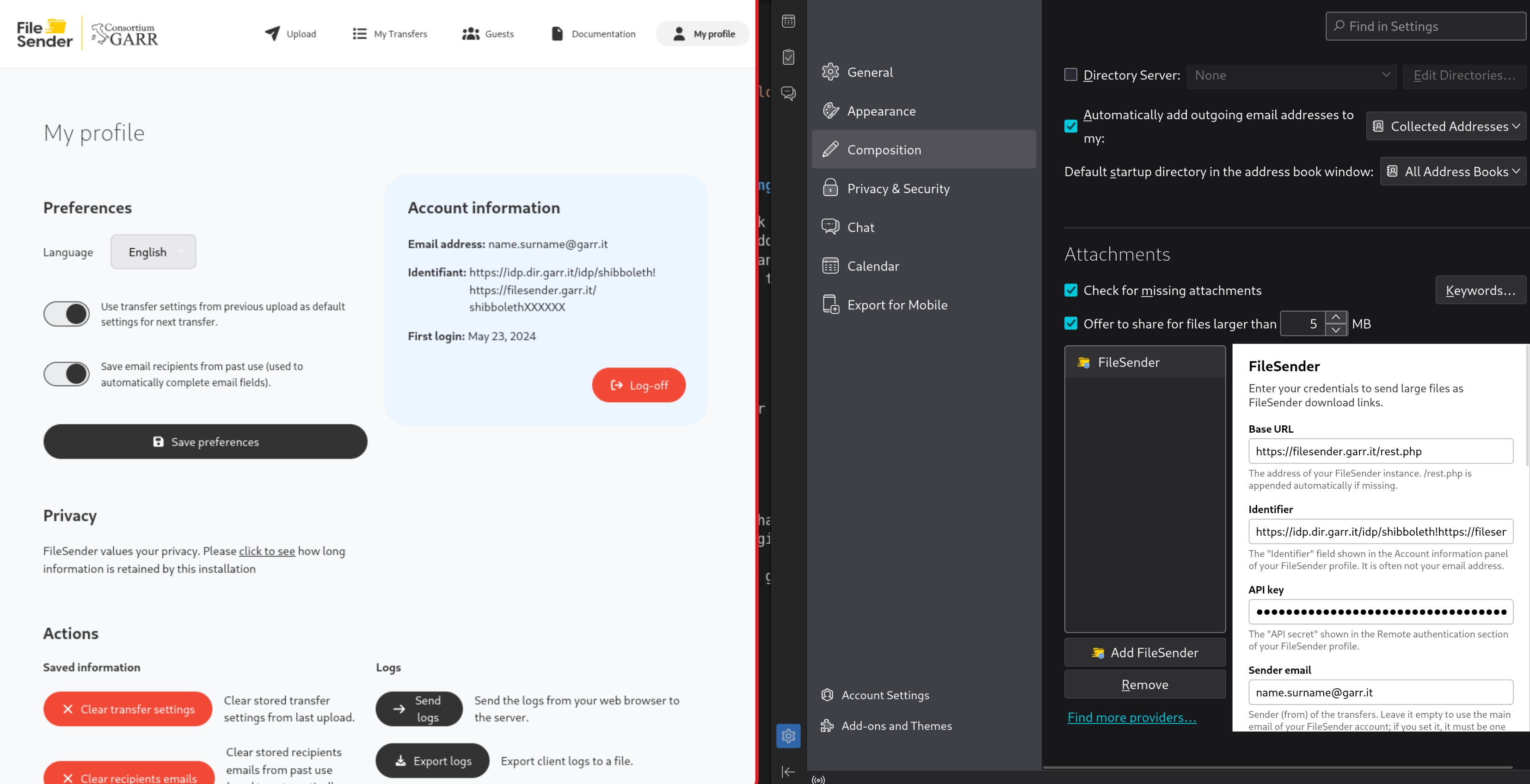
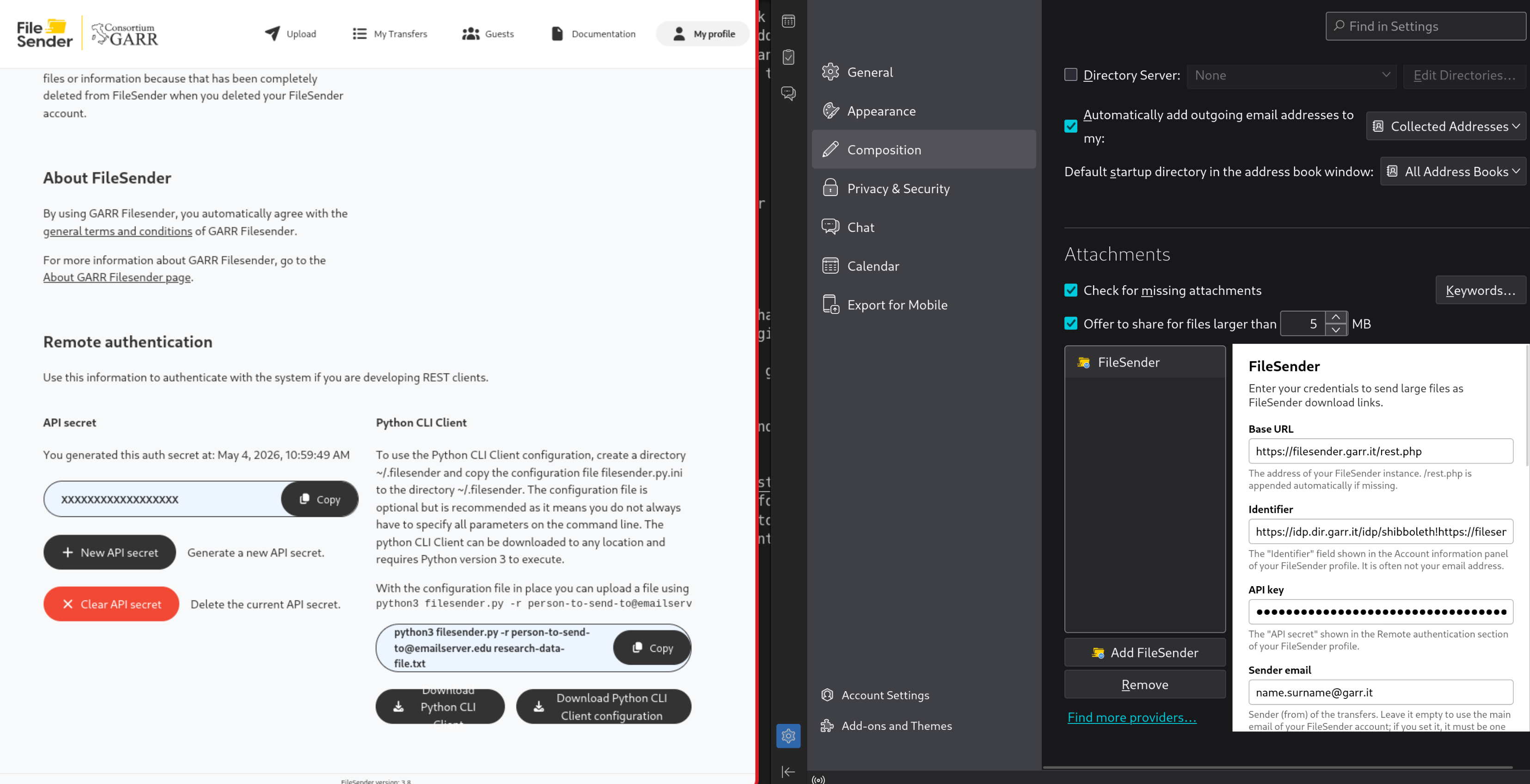
The links to download the filesender.py and filesender.py.ini files are located in the My Profile section. Here you can find information about the API Secret and the Python CLI Client. If you have not generated an API secret yet, you can do so by clicking the appropriate button in this section. Note: if you change your token, you will need to update your configuration.
To use the Filesender CLI configuration, create a ~/.filesender directory and copy the downloaded configuration file (filesender.py.ini) to the ~/.filesender directory.
The configuration file is optional but highly recommended because it means you don't always need to specify all the parameters (including the token) on the command line. The filesender.py Python client can be downloaded and placed anywhere convenient for you.
Download
The filesender.py script can be downloaded here.
Using Filesender CLI
With the configuration file active, you can upload a file using:
python3 filesender.py -f <source_mail> -r <destination_mail> dir1/dir2/file.txt
And you can download files using:
python3 filesender.py -f <source_mail> -d '<download_link>' -pv
Can I download files via command line by using a link that I received by email?
Yes, with some limitations. If you receive a link for which login is not required you can open the Download page, right-click on the "Download" button and select "Copy link address" to copy the download link.
Then, you can access the remote machine via SSH and run the wget command, making sure to enclose the link in quotes (to avoid issues with special characters in the URL in the terminal):
wget "<copied_link>"
Note
This solution does not work if the Filesender encryption option is used to encrypt the file or if user authentication is required to download the file.
FileLink for FileSender
FileLink for FileSender is a Thunderbird add-on that sends large files as FileSender download links instead of attaching them directly to the message.
Installation
Install the add-on from Thunderbird › Settings › Add-ons and Themes, searching for "FileLink for FileSender".
Configuration
- In Thunderbird, open Settings › Composition › Attachments.
- Click Add FileSender and select the account from the list.
- Open the FileSender My profile page and copy your credentials into the configuration form.
Required credentials
| Field | Where to find it |
|---|---|
| Base URL | https://filesender.garr.it/rest.php |
| Identifier | My profile page |
| API key | Generate a new key at the bottom of the My profile page |
| Sender email | My profile page |
Warning: your API key is personal. Do not share it, and regenerate it if you think it may have been exposed.
Use FileLink
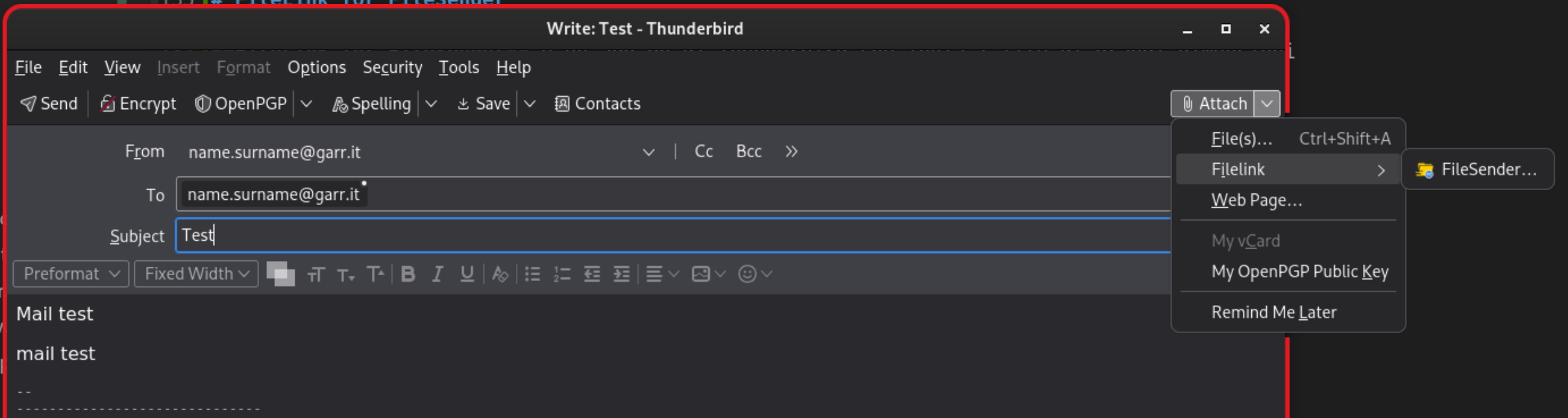
To use FileLink select the tool from the Attach button and select the files to upload
Troubleshooting
- Authentication error: check that the API key is valid and has not expired.
- Upload failed: verify that the Base URL is correct, including
/rest.php.